










Activating CBS on your Android TV is a straightforward process, but it can occasionally feel like a scavenger hunt if you aren’t sure whether you should be using the CBS app or Paramount+. As of 2026, the landscape of streaming has shifted slightly, making it even more important to follow the correct path for your specific subscription.
This guide provides a comprehensive, step-by-step walkthrough to get CBS up and running on your Android TV, whether you’re using a traditional cable provider or a standalone streaming plan.
Understanding Your Options: CBS vs. Paramount+
Before you start pressing buttons, you need to identify which service you are actually trying to activate.
- The CBS App:This is primarily for users who have a cable or satellite TV subscription (like Xfinity, Spectrum, or DirecTV). By “authenticating” with your provider, you can watch your local CBS station live and access recent on-demand episodes.
- Paramount+:This is the standalone subscription service. If you pay a monthly fee directly to Paramount (or through a bundle like Walmart+), you should download the Paramount+ app instead of the CBS app.
Note: If you have the Paramount+ “Premium” (or “with SHOWTIME”) tier, you get your local live CBS station built right into that app.
Read More – How to backup iPhone to iCloud?
Step 1: Install the CBS App on Android TV
Your Android TV (whether it’s a Sony, Hisense, or a Chromecast with Google TV) uses the Google Play Store.
- Navigate to the Home Screen:Use your remote to go to the “Apps” tab or the search icon.
- Open the Google Play Store:Search for “CBS.”
- Download and Install:Select the official CBS app and click Install.
- Launch the App:Once installed, open the app. You will be greeted with a home screen featuring featured shows.
Read More – Can I activate TNT on multiple devices visit tntdrama.com/activate.
Step 2: Generate the Activation Code
To link your TV to your account or cable provider, you need a unique bridge code.
- Find the Sign-In Option:Within the CBS app, look for a “Settings” gear icon or a “Sign In” button (often located in the top navigation bar or side menu).
- Select “Sign in with TV Provider”:Click this option.
- View the Code:Your Android TV will display a 5-digit or 7-digit alphanumeric code on the screen.
- Keep this screen open.If the screen dims or the app closes, the code may expire, and you’ll have to generate a new one.
Step 3: Activate via Web Browser
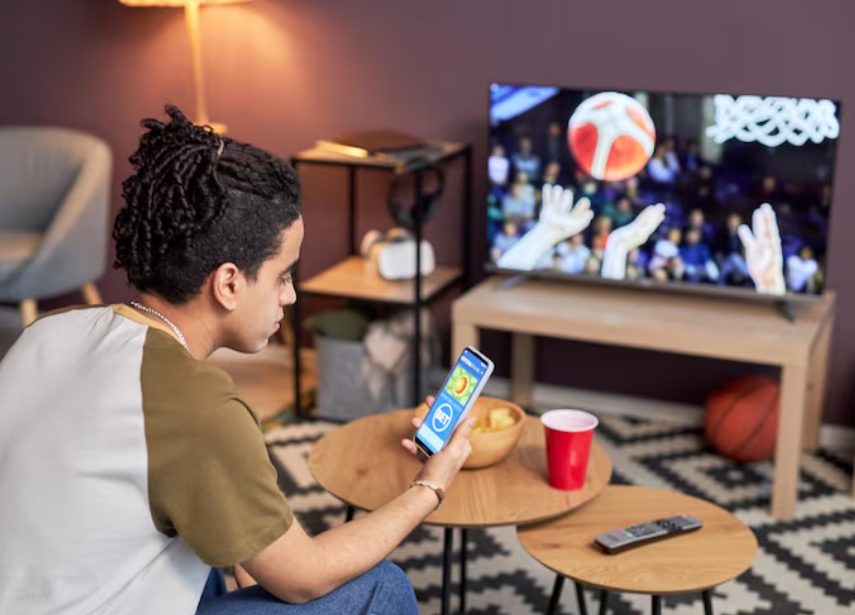
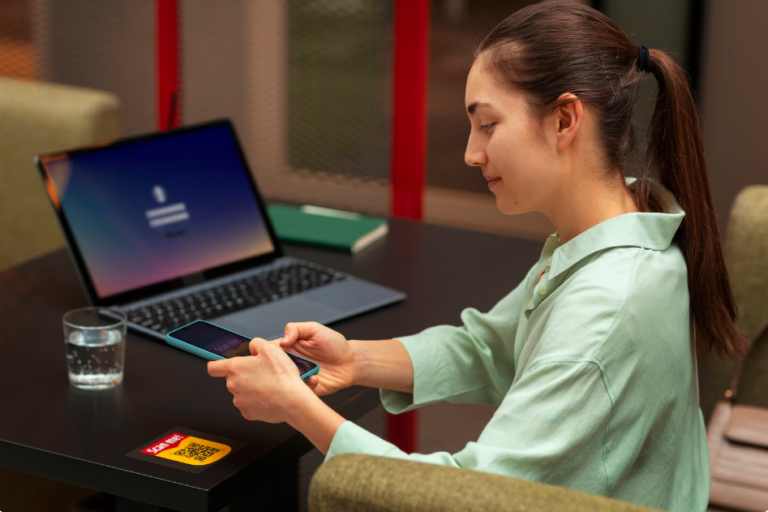
Now, you’ll need a second device—like a smartphone, tablet, or laptop—to finalize the connection.
- Go to the Activation URL:Open your browser and type in: com/tv/androidtv.
- Enter the Code:Type the code exactly as it appears on your TV screen into the box provided on the website.
- Click “Activate” or “Next”:If the code is valid, the website will redirect you to a provider selection page.
Read More – Activate Your TV to Stream U Watch U FREE Visit u.co.uk/activate.
Step 4: Verify Your TV Provider
This is the “handshake” between the network and your cable company.
- Choose Your Provider:A list of major providers (like Cox, Optimum, or Hulu + Live TV) will appear. If you don’t see yours, select “View All Providers.”
- Log In:You will be redirected to your provider’s login portal. Enter the username and password you use to pay your cable bill.
- Success:Once logged in, the webpage should say “Success!” or “Your TV is now activated.”
Back on your Android TV, the screen should automatically refresh within a few seconds, granting you full access to the library.
You May Also Like – How to activate Cartoon Network Via cartoonnetwork.com/activate.
Troubleshooting Common Issues
If things aren’t going smoothly, don’t throw your remote just yet. Most activation issues are caused by minor technical glitches.
- The Code Isn’t Working
- Expiration:Codes usually expire after 10–15 minutes. If you took a coffee break mid-process, go back to the TV and request a “New Code.”
- Typing Errors:Ensure you aren’t confusing the letter “O” with the number “0” or “I” with “1.”
Read More – Scrap Iron Price Today.
- The App Keeps Buffering or Crashing
- Clear Cache:On your Android TV, go to Settings > Apps > CBS > Clear Cache. This often fixes “stuck” screens.
- Update Software:Ensure both your CBS app and your Android TV system software are up to date.
- “Provider Not Authorized” Error
- Package Check:Ensure CBS is actually part of your cable package.
- Secondary Accounts:Some providers require the “Primary” account holder’s login for third-party app activation.
Managing Your CBS Experience
Once activated, you can customize your experience to make sure you never miss a kickoff or a season premiere.
- My List:You can add shows like Survivor, Ghosts, or 60 Minutes to your “My List” for easy access.
- Live TV vs. On-Demand:The “Live TV” tab will stream your local affiliate in real-time, while the “Shows” tab offers past episodes.
You May Also Like – PVC Wall Panels.
Closed Captions: You can usually toggle these by pressing the “Down” or “Up” button on your remote while a video is playing t









+ There are no comments
Add yours